Using Perfetto GUI to view kernel traces
Once we convert our CTF trace to the Perfetto protobuf format, we can load it to the GUI. The following article is a simple feature tour.
Our example trace is a recording of an idling 4-core ia32 target emulated on QEMU with UART console.
Loading the trace file
Navigate to https://ui.perfetto.dev/ and open the converted file via “Open trace file”:

If everything succeeds, you should see a timeline of expandable processes, like here:
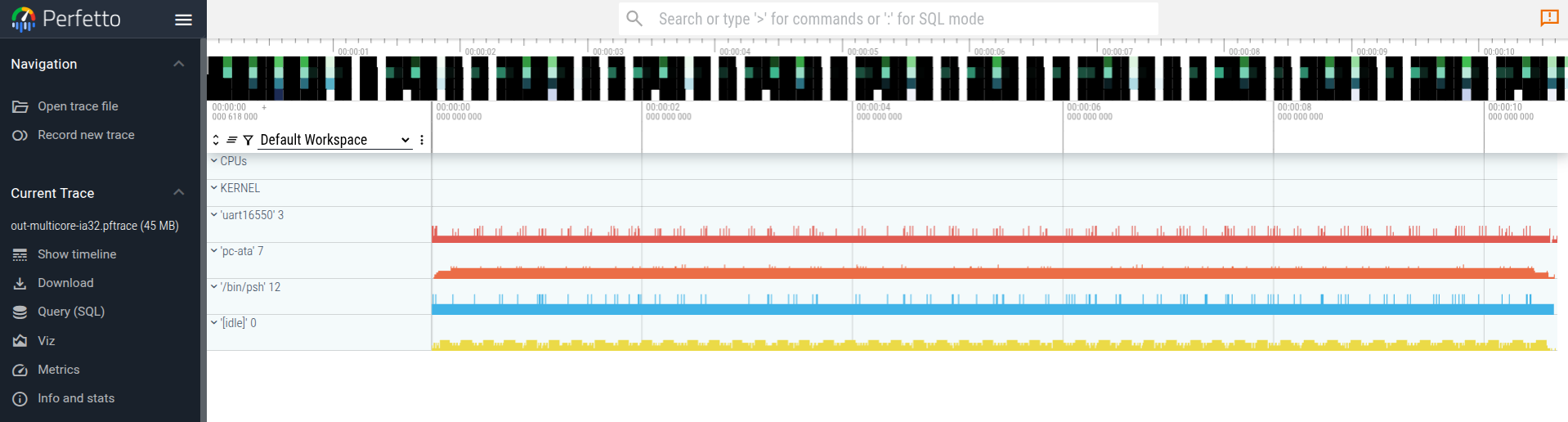
Basics - What am I looking at?
Looking closer at the track list, we see:
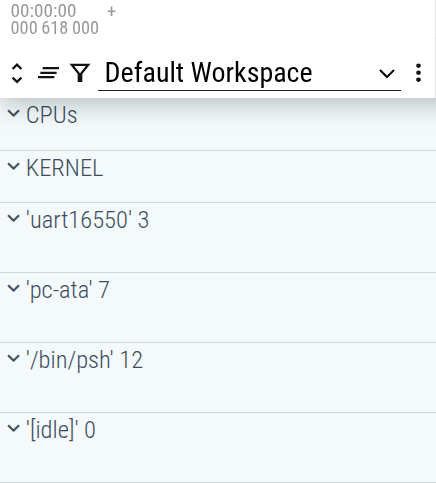
The “CPUs” and “KERNEL” tracks are special. The rest consists of process tracks.
A track can be expanded by clicking  before its name. One can also expand
all tracks by clicking
before its name. One can also expand
all tracks by clicking  in
the top-left corner.
in
the top-left corner.
The track filtering capabilities for the time being are known to be buggy (on
Perfetto’s end), so exploring the  option is left as an exercise to
the reader.
option is left as an exercise to
the reader.
“CPUs” track
Upon expanding the “CPUs” track and zooming in a bit (either with Ctrl+ScrollUp/Ctrl+ScrollDown or W/D keys) we can see what thread is executing at a given time on each CPU core:

“KERNEL” track
The “KERNEL” track contains a subtrack for each CPU core with specific kernel-space events occurring that cannot be bound to any kernel thread such as IRQs, scheduler invocation, etc.:

Process tracks
We can see that there were 4 processes running:
uart16550 driver process -
'uart16550' 3ATA disk driver -
'pc-ata' 7main psh process -
'/bin/psh' 12idle process -
'[idle]' 0
Every process track can be expanded to unveil its thread tracks. Here we expand uart16550 process that has i.e. threads with TIDs 7 and 9 (number in parenthesis denotes the thread ID):
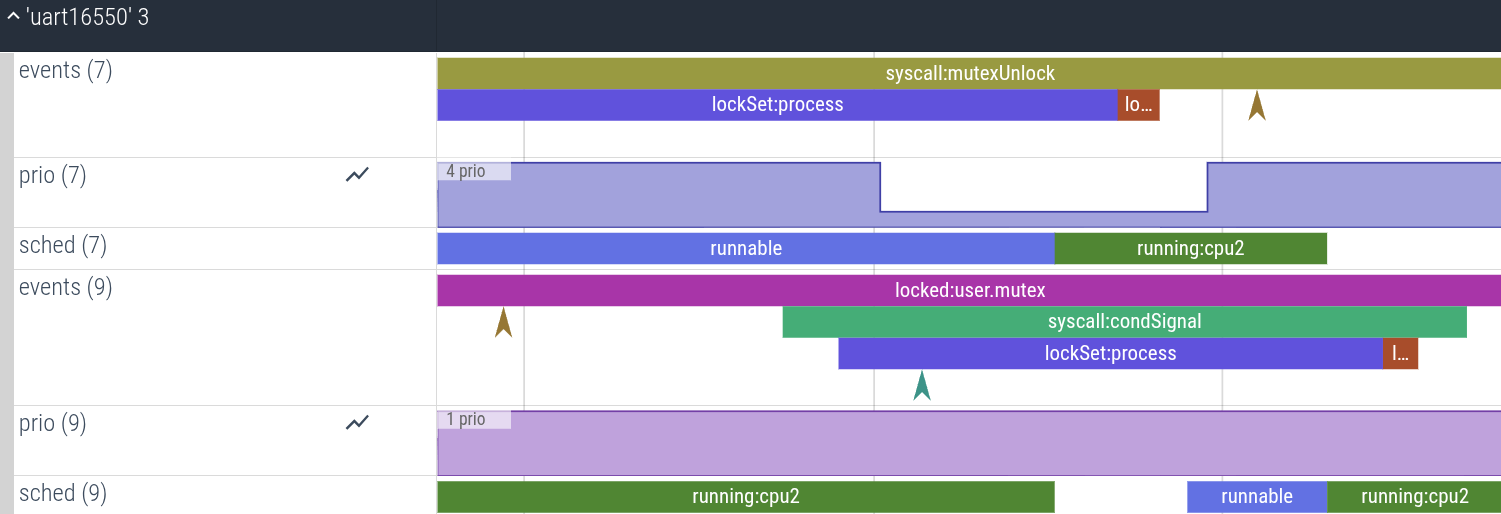
There are three tracks associated with each thread:
eventstrack - event track where all the kernel events can be found: syscalls, locks, moment of preemption by the scheduler, etc.
priotrack - counter track denoting the thread priority at a given time. In the example, the thread 7’s priority got temporarily elevated from 4 to 1 for the duration of kernel lock possession:
schedtrack - event track for scheduler state events, e.g.runnablemarks the time period the thread is ready to be run, andrunning:cpuNdenotes the period in which the thread was run on CPU core N
Advanced features
Previous section should give you the fundamentals for navigating the trace. Depending on your use case, the following section describes additional features that may facilitate the trace analysis.
Flows
Perfetto allows for grouping logically related events into flows that are later visualized in GUI and possible to traverse back and forth.
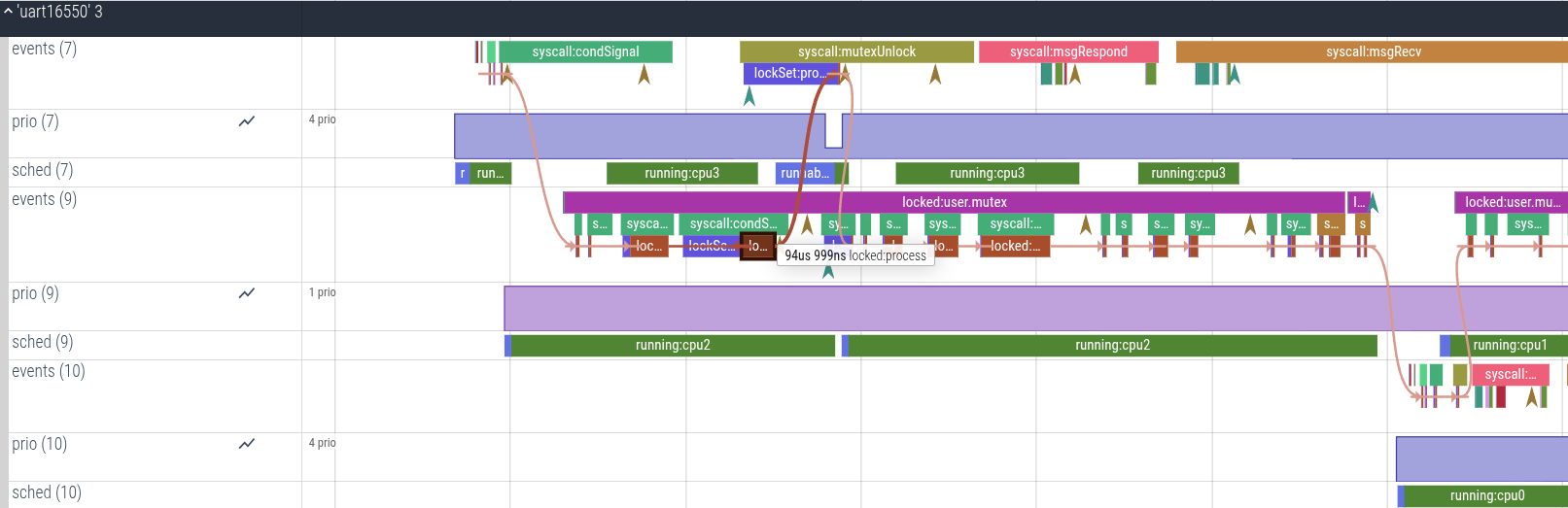
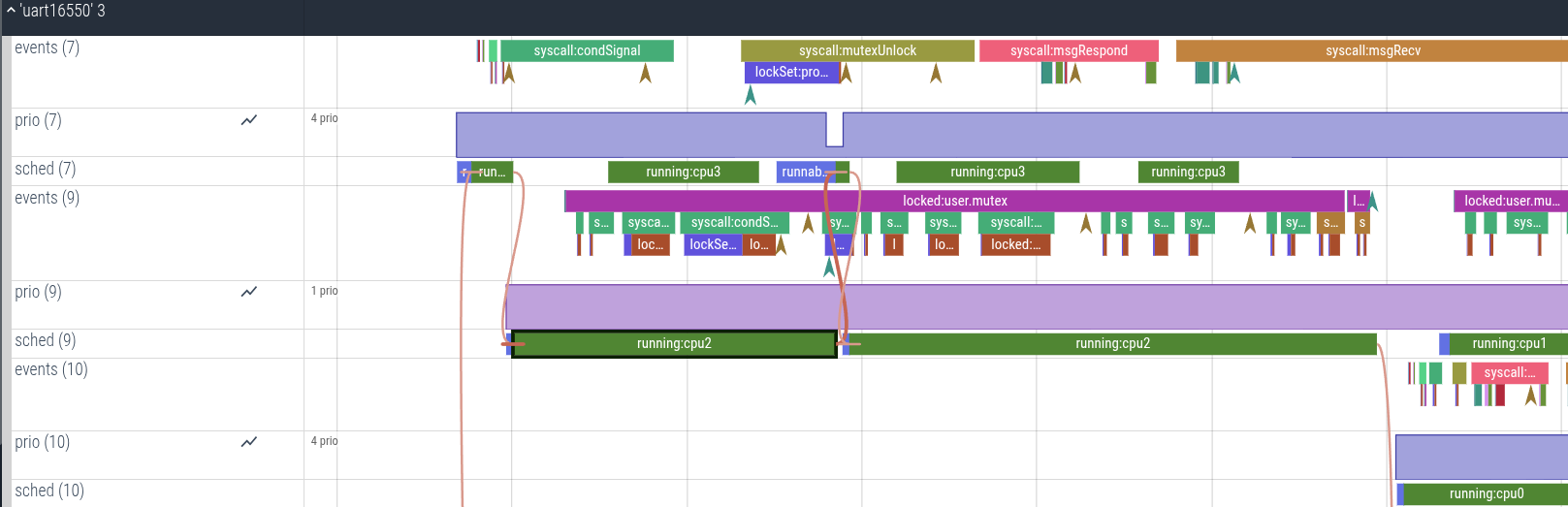
Some of our events are grouped into such flows: the running:cpuN events are
connected for the same CPU core and locked:X lock possession events are
connected for the same lock.
If you click on any locked:X event, the GUI will unveil a flow for a given lock X:
Same will happen if you click on running:cpuN:
If you open the bottom bar by clicking the button  on the bottom-right you can see
the previous and next events in the flow. By clicking on the flows, you can walk
through the flow.
on the bottom-right you can see
the previous and next events in the flow. By clicking on the flows, you can walk
through the flow.
Aggregations
You can select parts of timeline with a mouse drag to perform aggregations. This
time, if you open the bottom bar by clicking the button on the bottom-right, you will
see statistics for the area selection:
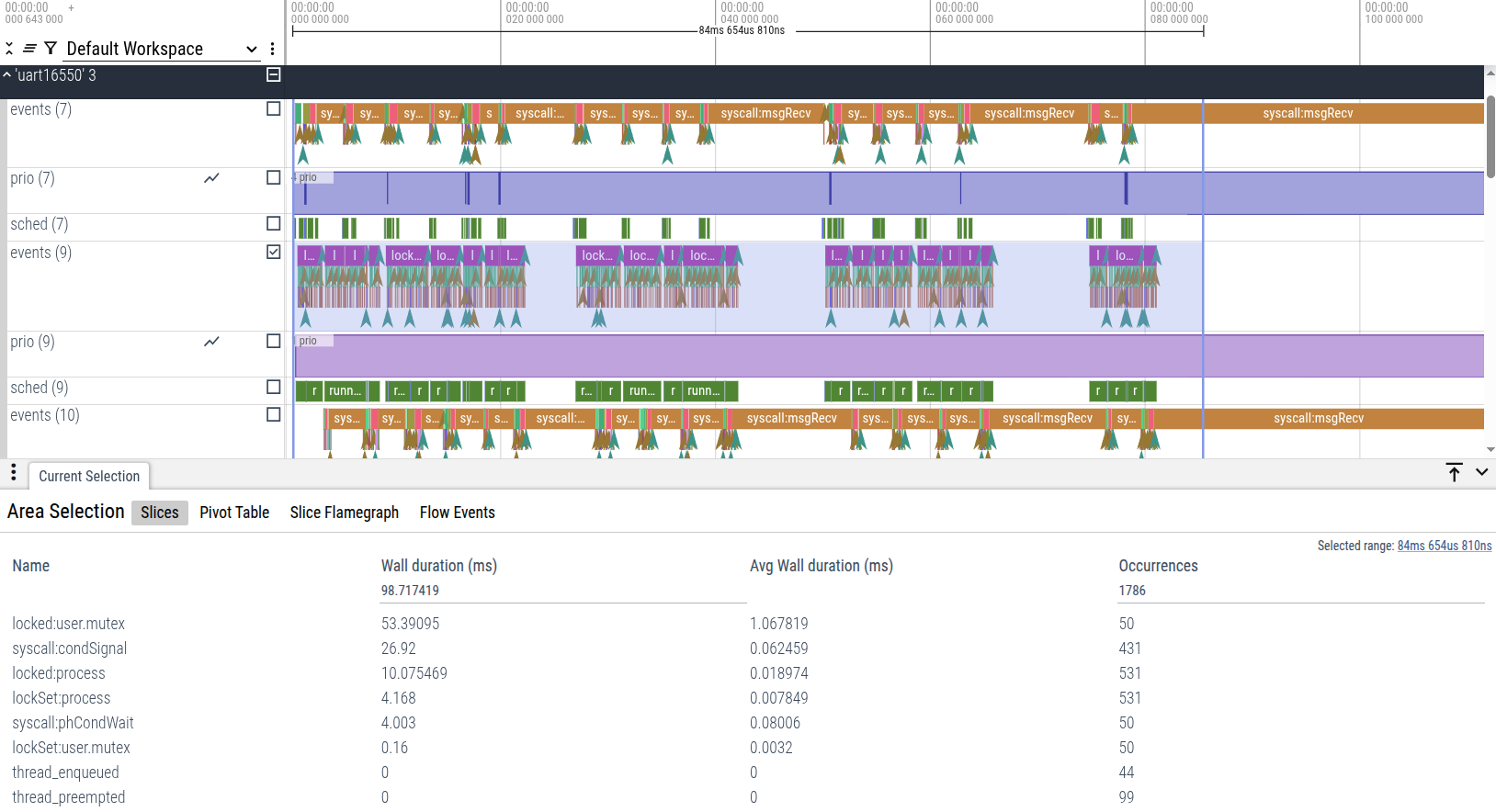
These aggregations are customizable.
There is also a pivot table (similar to Slices view) and a Slice Flamegraph:

If you are an SQL connoisseur, you can insert : into the search bar…

…and do queries, e.g: